Finding things
Tags
Label notes across folders, and filter the sidebar by them.
What it is for
A note lives in one folder but is often about several things. Tags cut across folders: tag every note that needs a follow-up, then show just those, wherever they are filed.
How to use it
- Create tags in Settings → Tags: type a name and press Enter.
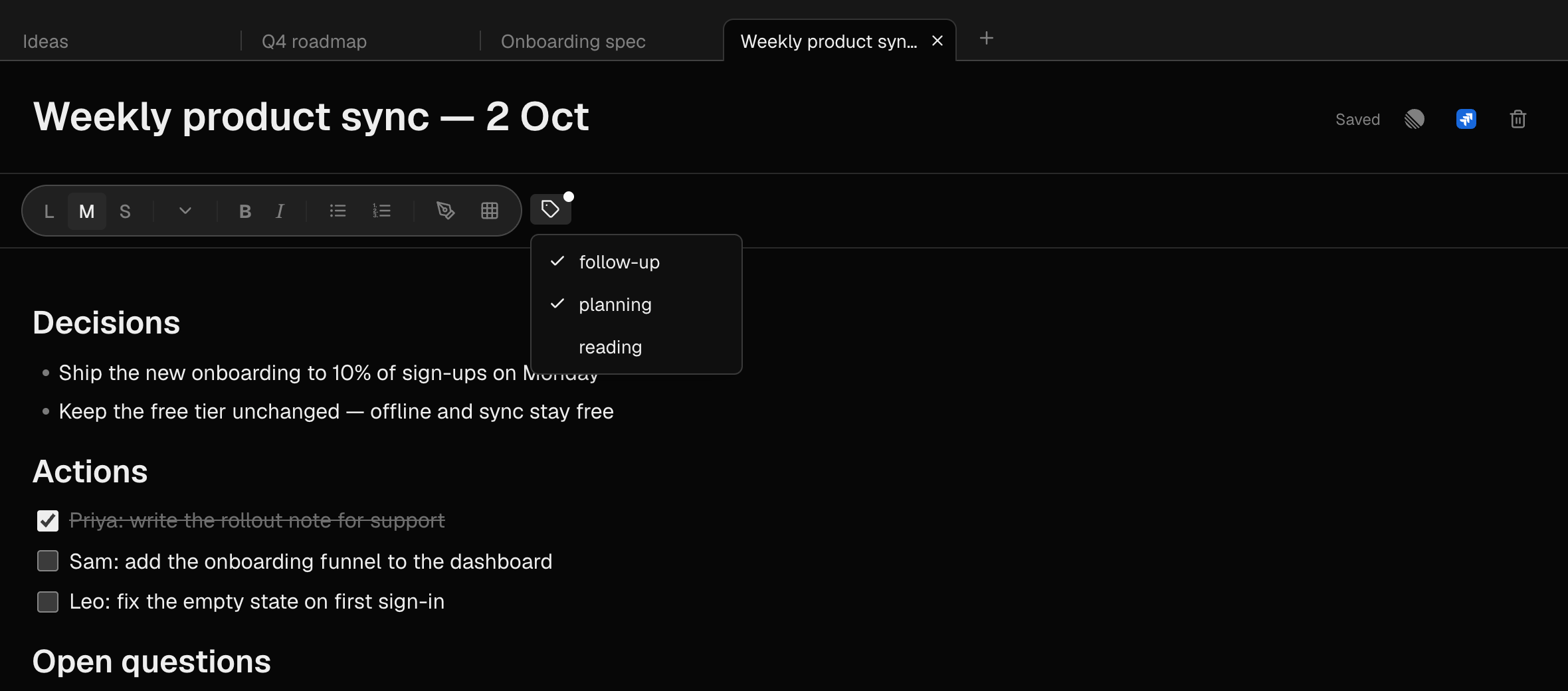
- In a note, press the tag icon in the formatting toolbar and click a tag to add or remove it. A dot on the icon means the note has tags.
- To filter, press Filter by tags at the top of the sidebar and pick one or more. Only notes with at least one of them are shown, and a number on the icon says how many filters are on.
- Click a selected tag again to remove that filter.
- Rename or delete tags in Settings → Tags. Deleting a tag removes it from every note.
Examples
Follow-ups across every project
Tag notes follow-up wherever they are filed. On Friday, filter by follow-up and work through the list.
A reading list
Tag articles and book notes reading, so they gather in one view without leaving the topic folders they belong to.
Good to know
- Tag names are stored in lowercase and sync to every device.