Writing
Right-click to format or send
Select text, right-click, and change it without reaching for the toolbar.
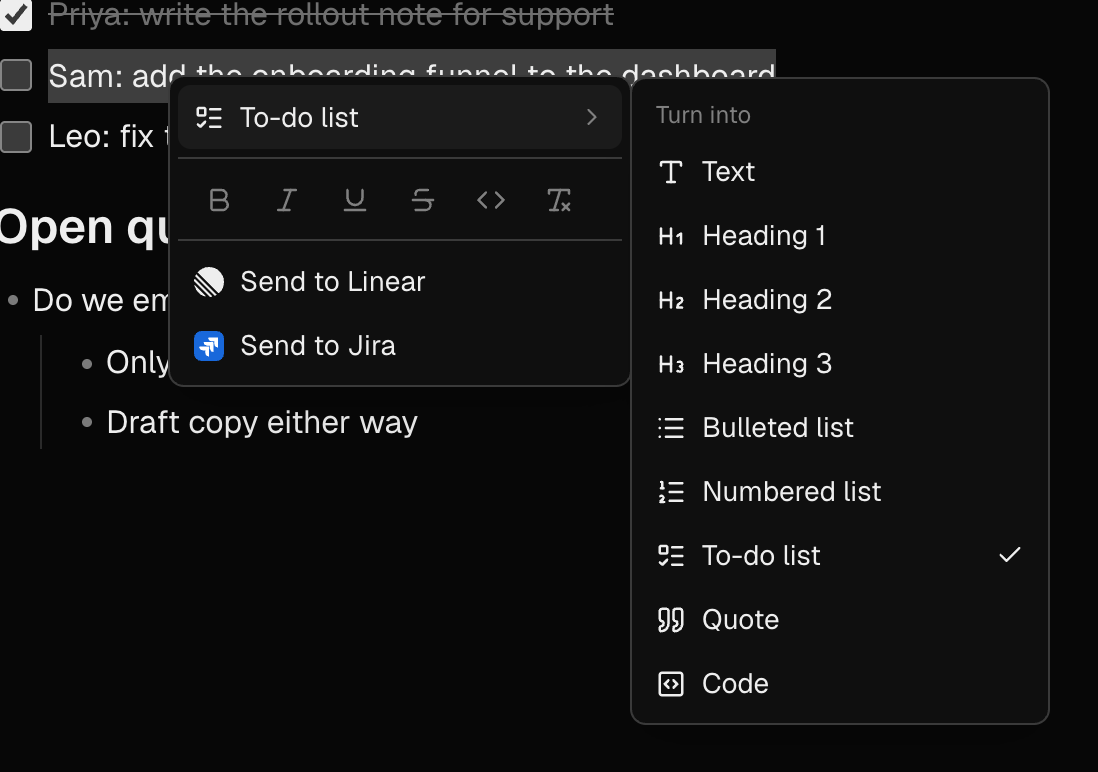
What it is for
The formatting you need is where your pointer already is. One right-click turns a line into a heading or a to-do, formats the words you picked, or sends them to Linear or Jira as an issue — without scrolling back up to the toolbar.
How to use it
- Select the text you want to change. A whole line, a few words or several lines all work.
- Right-click the selection.
- Point at the first row (it shows what the line is now, for example Text) to turn it into a heading, a bulleted, numbered or to-do list, a quote or a code block.
- Or use the row of icons to make the selection bold, italic, underlined, struck through or inline code. The last icon clears all of that.
- If you have connected Linear or Jira, Send to Linear and Send to Jira appear at the bottom. They open the same push form as the buttons beside the note title, starting from what you selected.
Examples
Tidying up after a meeting
You typed quickly and everything is plain text. Select "Decisions", right-click, Turn into → Heading 2. Select the three action items, right-click, Turn into → To-do list. Done in seconds, without touching the toolbar.
One line becomes a ticket
A line in your notes reads "Export button does nothing in Safari". Select it, right-click, Send to Linear, and the issue is filed with that line as its title — the issue number then sits beside it.
Good to know
- With nothing selected, right-click shows your browser's usual menu, which is where spelling suggestions are. Inside a table it shows the table menu instead.
- Send to Linear and Send to Jira only appear for the services you have connected in Settings → Integrations. Pushing an issue is part of Pro.