Settings
Theme and colours
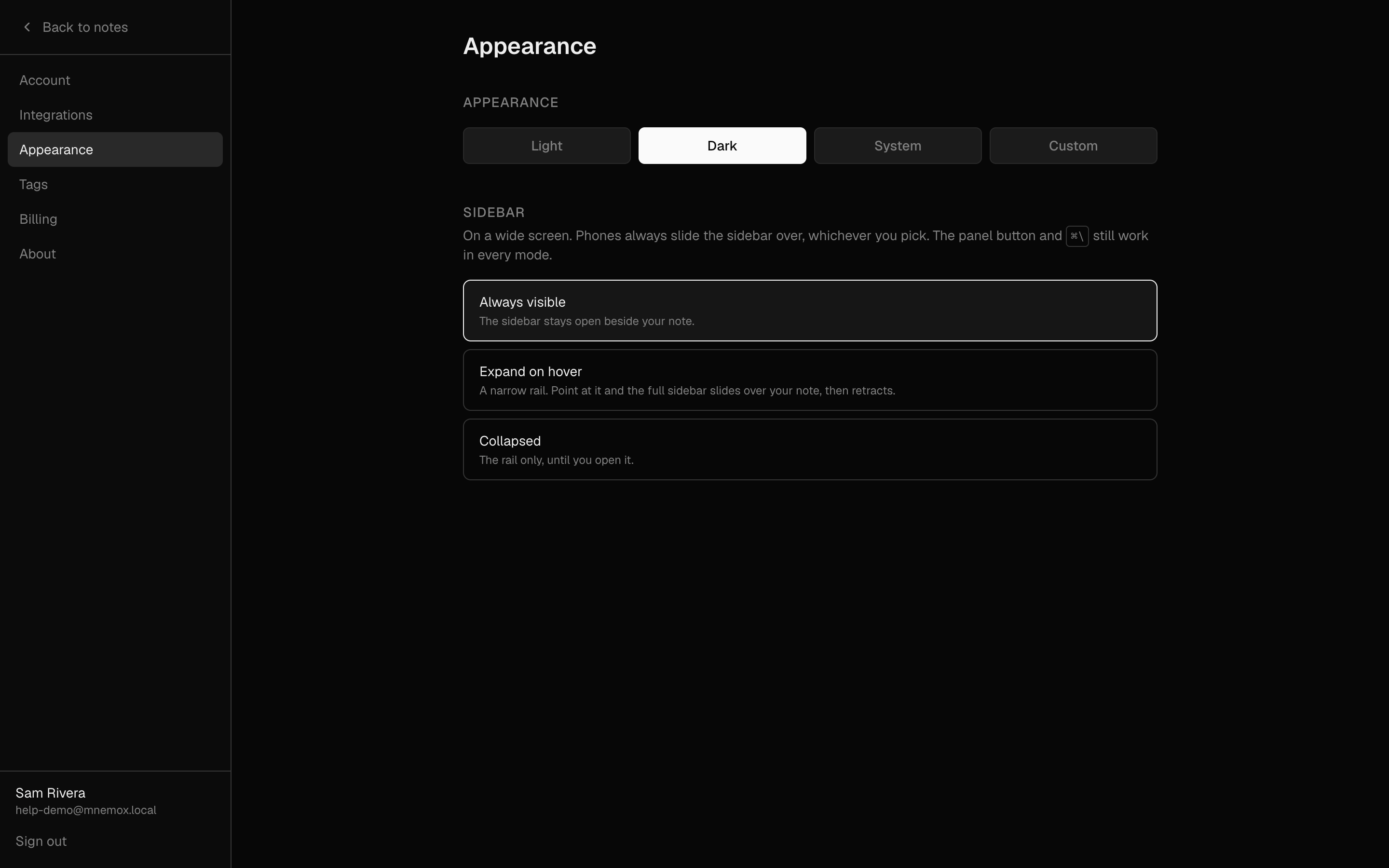
Light, dark, follow your system, or choose your own colours.
What it is for
Write in whatever is comfortable for your eyes and your room — and make the app feel like yours.
How to use it
- Go to Settings → Appearance.
- Choose Light, Dark, System (follows your computer's setting) or Custom.
- With Custom, pick a background colour and an accent colour, and set the text contrast from Soft to Strong. The text turns dark on a light background and light on a dark one by itself.
Example
Day and night
Choose System, and Mnemox switches between light and dark when your computer does.
Good to know
- The accent colour is used for buttons, the selected note and other active states, so it stays visible in any theme.