Notes and folders
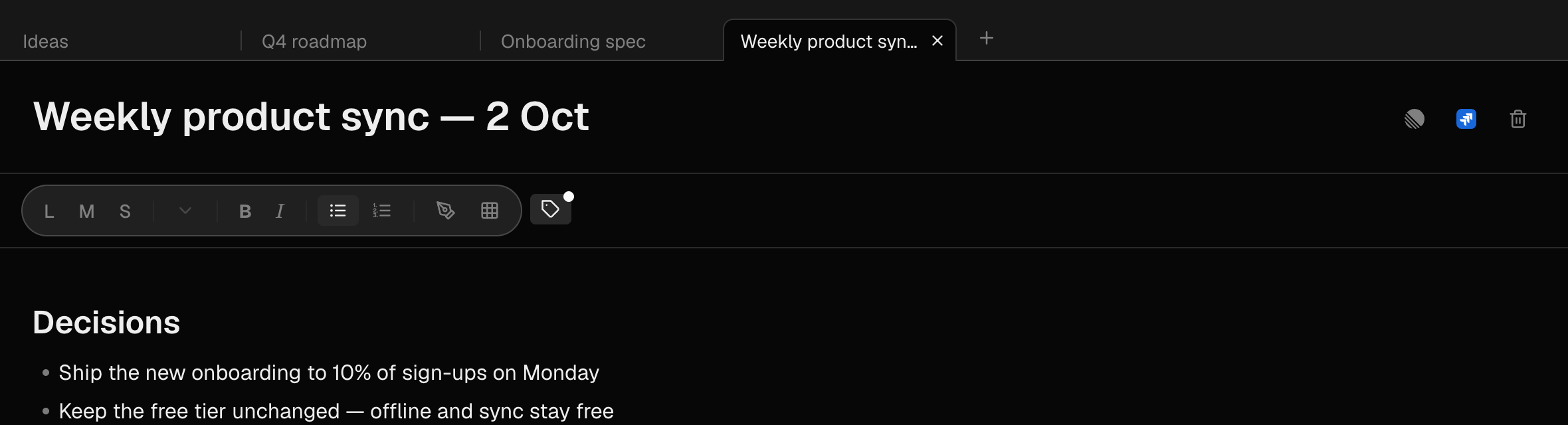
Open notes in tabs
Keep several notes a click apart, on desktop.
What it is for
Saves the walk back through the sidebar every time you switch between two notes. Keep the notes you are working across open as tabs and flick between them.
How to use it
- Click a note in the sidebar and it opens as a tab above the editor.
- ⌘-click (Ctrl-click on Windows) or middle-click a note, or right-click → Open in new tab, to open it without leaving the note you are in.
- Close a tab with its ×, a middle-click, or right-click → Close, Close other tabs or Close tabs to the right.
- Drag tabs to reorder them. The + at the end makes a new note.
Examples
Writing a weekly report
Open last week's meeting notes beside the report you are writing, and flick between them to copy decisions across.
Working a project
Keep the spec, the open questions and the task list open as three tabs while the rest of your folders stay closed.
Good to know
- Tabs belong to the device, not the account: your laptop and your desktop each keep their own. That is intended.
- On a phone there is no tab strip; the sidebar works as it always has.
- Closing every tab leaves an empty editor — the app will not open a note for you.