Notes and folders
Show, hide or auto-hide the sidebar
More room to write, with the sidebar a keystroke away.
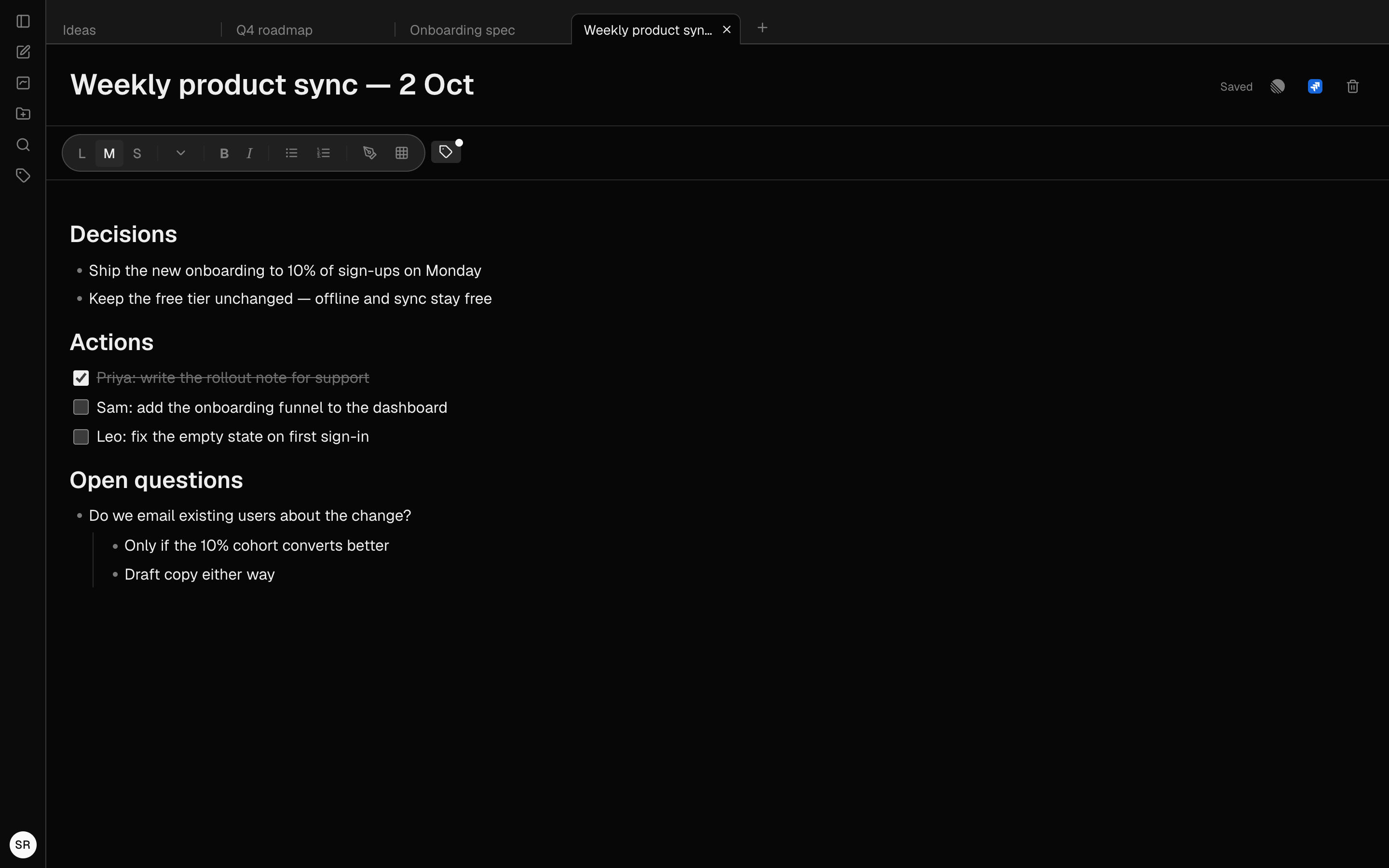
What it is for
On a laptop, the sidebar's width is the difference between a comfortable line length and a cramped one. Hide it while you write and bring it back when you need to find something.
How to use it
- Press the panel button at the top right of the sidebar, or ⌘\ (Ctrl+\ on Windows), to hide it. A narrow rail stays with New note, New canvas, New folder, Search, Filter by tags, Help and Settings.
- Press the panel button on the rail, or ⌘\ again, to bring it back.
- To choose how it behaves by default, go to Settings → Appearance → Sidebar: Always visible, Expand on hover (point at the rail and the sidebar slides over your note) or Collapsed.
Examples
Drafting something long
Hide the sidebar with ⌘\ while you write, then press it again when you need to check another note.
A small screen, all the time
Choose Expand on hover in Settings. The sidebar stays out of the way and slides in whenever you point at the left edge.
Good to know
- The mode in Settings follows your account to every device. The panel button and ⌘\ only affect the screen you are on.
- Choosing a mode in Settings resets the button, so a sidebar you hid by hand yesterday does not override the mode you pick today.
- On a phone nothing changes: the sidebar is always a slide-over.