Getting started
Getting around Mnemox
The sidebar, the editor and where everything lives.
What it is for
Mnemox is a notes app that keeps working when the connection does not, and syncs to every device you sign in on. This is the map: once you know the four areas of the screen, everything else in Help is a detail of one of them.
How to use it
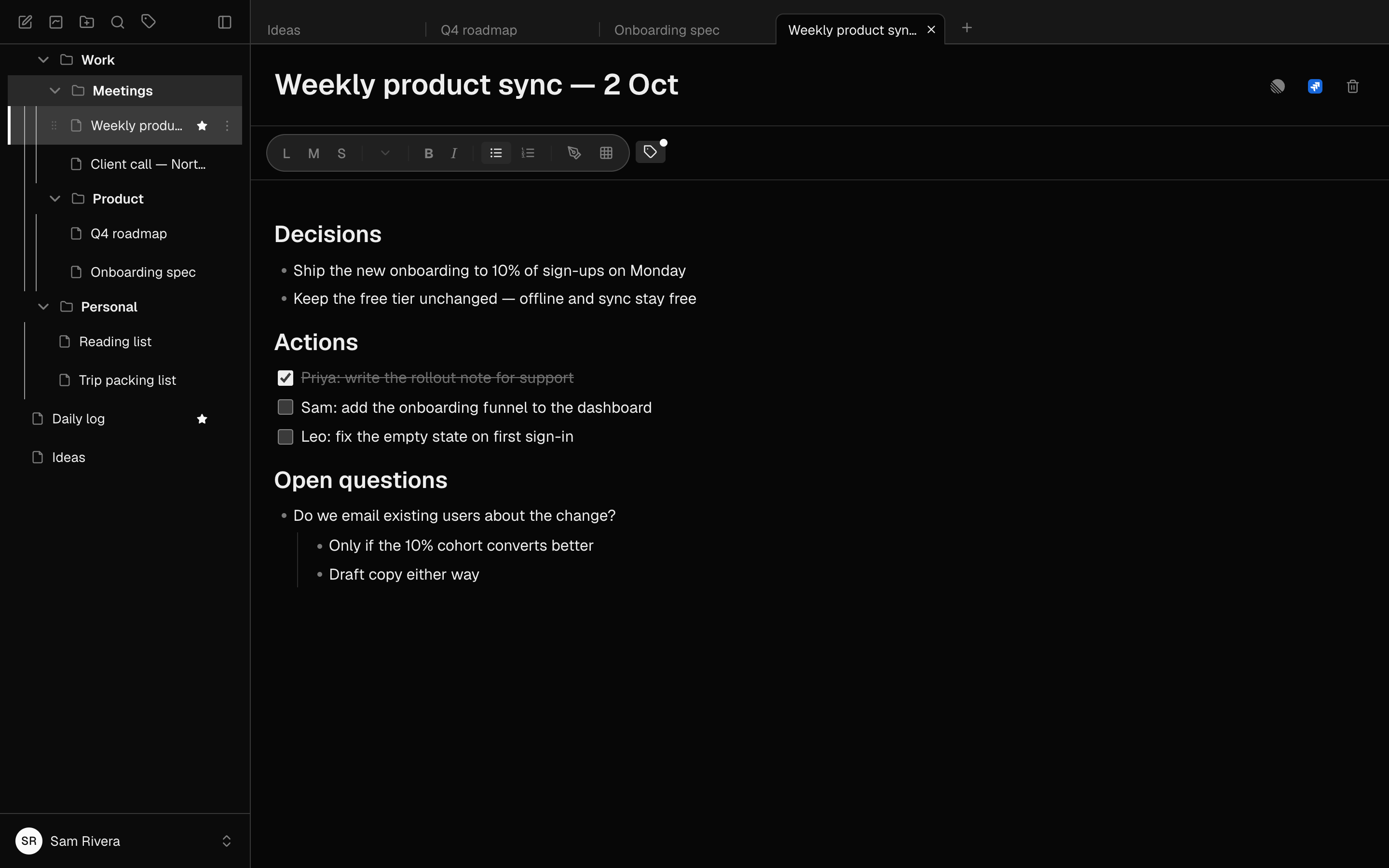
- The sidebar on the left lists your folders and notes. Its top toolbar has New note, New canvas, New folder, Search and Filter by tags.
- Click a note to open it in the editor on the right. The title sits at the top, then the formatting toolbar, then the note itself.
- On a wide screen, every note you open gets a tab above the editor, so a few notes stay a click apart.
- At the bottom of the sidebar is your name. Click it for the account menu: Settings (⌘,), Get help, Give feedback, Upgrade to Pro on the free plan, and Log out. With the sidebar collapsed it is your initials at the bottom of the narrow bar.
Example
Your first five minutes
Make a folder called Work, select it, then press New note — the note lands inside it. Type a title, press Enter, and start writing. There is no save button; it saves a second after you stop typing.
Good to know
- A new account starts with one note, Welcome to Mnemox, listing what to try first. It is an ordinary note: edit it, or delete it when you are done, and it does not come back.
- On a phone the sidebar slides over the note instead of sitting beside it. Tap the menu button at the top left to bring it back.