Notes and folders
The note and folder menus
Duplicate, rename, share, export, push and delete.
What it is for
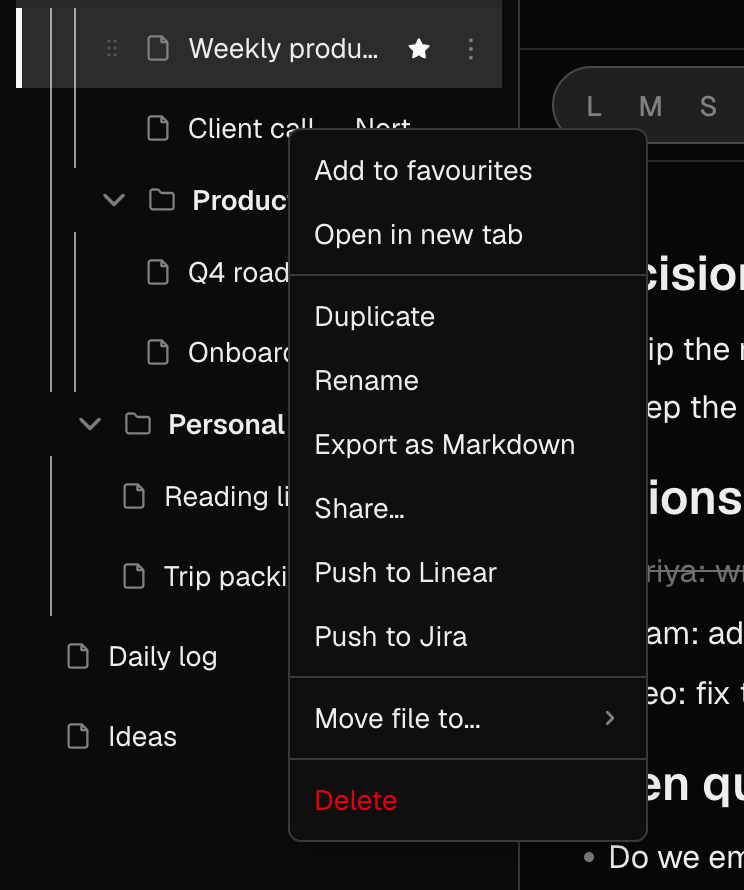
Everything you can do to a note as a whole — rather than to the words inside it — lives in one menu, so there is one place to look.
How to use it
- Right-click a note in the sidebar, or press the ⋮ button that appears on hover (it is always visible on the selected note).
- Open in new tab — opens the note in a tab without leaving the one you are in.
- Add to favourites — puts a star beside it. See Favourites.
- Duplicate — makes a copy in the same place. Rename — type the new name, Enter to confirm, Escape to cancel.
- Export as Markdown — downloads the note as a .md file.
- Share… — creates a read-only link. Push to Linear / Push to Jira — turns it into an issue.
- Move file to... — files it somewhere else. Delete — asks first, then deletes it.
- Right-click a folder for New Note, New Folder, Share…, Duplicate (the folder and all its notes), Move folder to..., Rename and Delete.
Examples
A template you reuse
Keep a Weekly review note with your headings already in it. Each Friday, Duplicate it, rename the copy with the date, and fill it in.
Handing a note to someone outside the app
Export as Markdown gives a file that opens in any editor, pastes cleanly into GitHub or a wiki, and keeps headings, lists, checklists and tables.
Good to know
- A drawing exports as the placeholder _[drawing]_, because Markdown has no way to carry the picture.
- Deleting a note cannot be undone.