Notes and folders
Create notes and folders
Make notes, nest folders inside folders, and choose where new notes land.
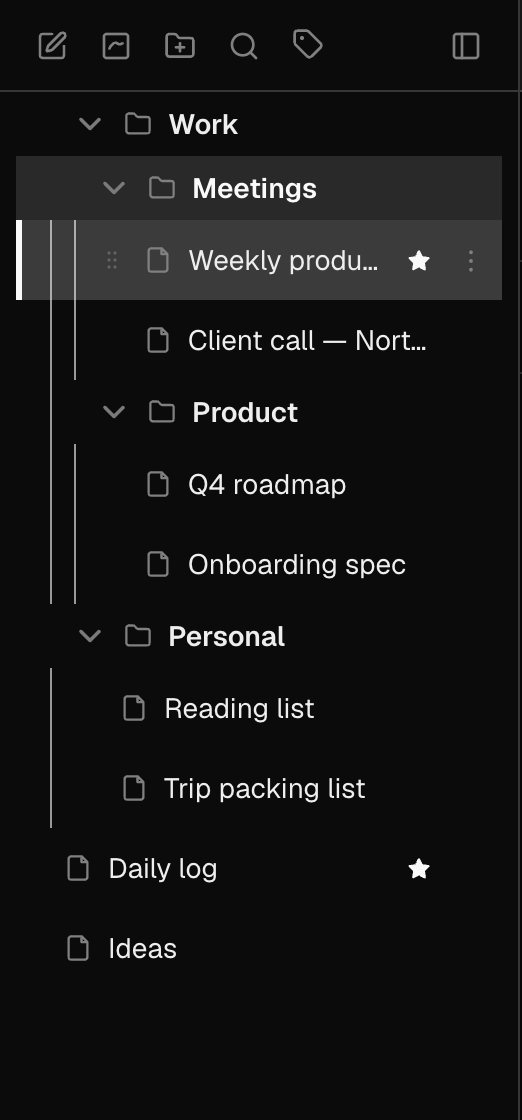
What it is for
Folders give a long list of notes some shape: one per project, client or area of your life. They nest as deep as you like, so a project can hold its meetings, specs and loose ideas without everything sitting in one heap.
How to use it
- Press New note (the page icon) at the top of the sidebar. If a folder is highlighted, the note is created inside it; otherwise it is unfiled.
- Press New folder (the folder icon) to make a folder. Right-click a folder → New Folder to make one inside it.
- Click a folder, or any note inside it, to make it the current folder — the next New note goes there. Click an unfiled note to go back to unfiled.
- Click the › chevron beside a folder to open or close it.
- Notes that are not in any folder are listed below all your folders.
Examples
One folder per client
A folder per client, each with Meetings and Proposals inside. Select Meetings before a call and press New note — the call notes are filed before you have typed a word.
A quick capture that you file later
Click an unfiled note, press New note and jot the thought down. Drag it into the right folder when you have a minute.
Good to know
- New notes and folders work offline too. They appear straight away and are added to your account the next time you are online, in the folder you made them in.
- Deleting a folder deletes the folders inside it, but its notes are not deleted: they move to the top level.