Integrations
Push a note to LinearPro
Turn a note, or one line of it, into a Linear issue.
What it is for
Every meeting note has a line that should have been an issue. Push sends it straight to Linear — title, description, assignee, project and due date — without retyping it or opening another tab, and the issue number stays on the line it came from.
How to use it
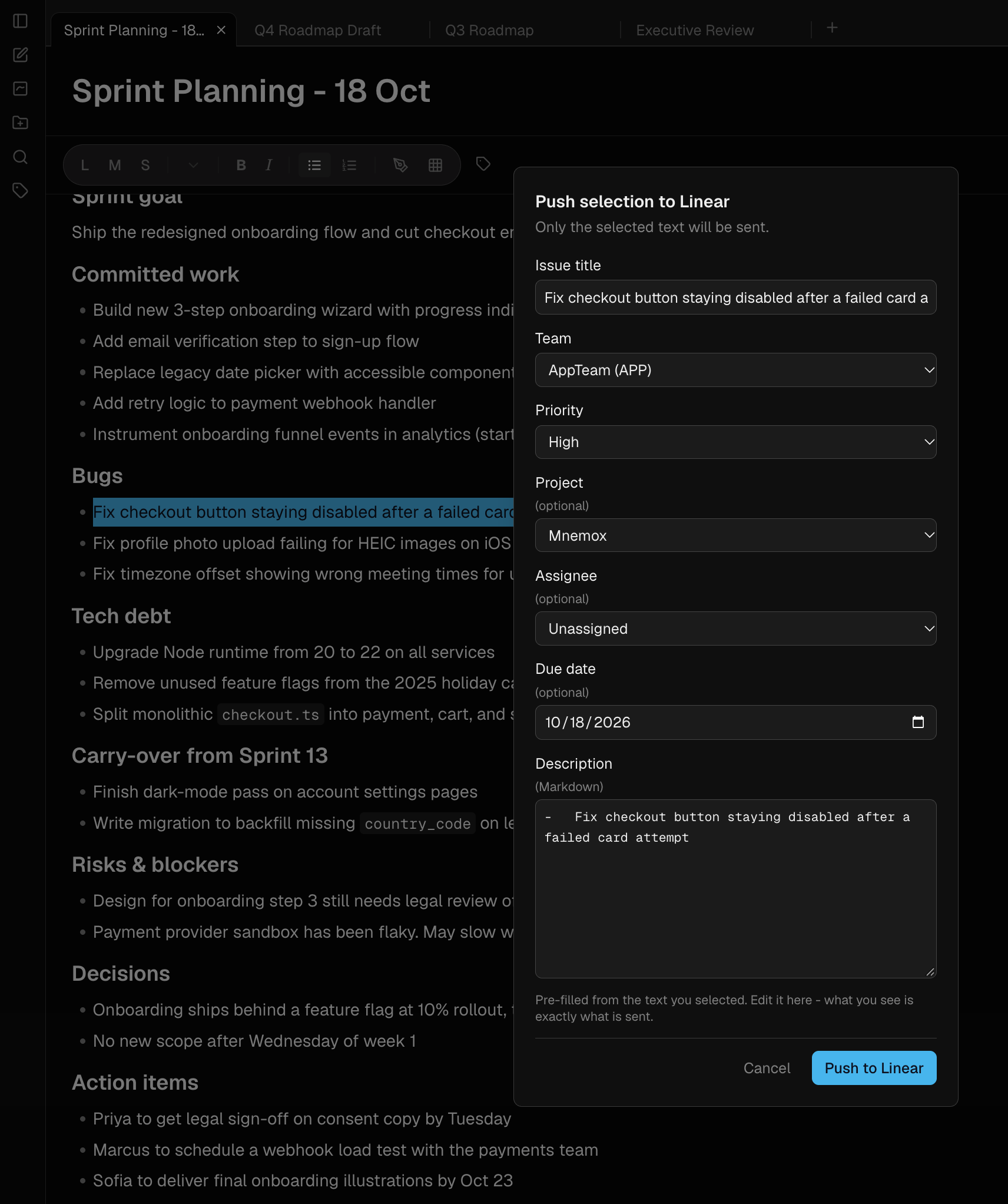
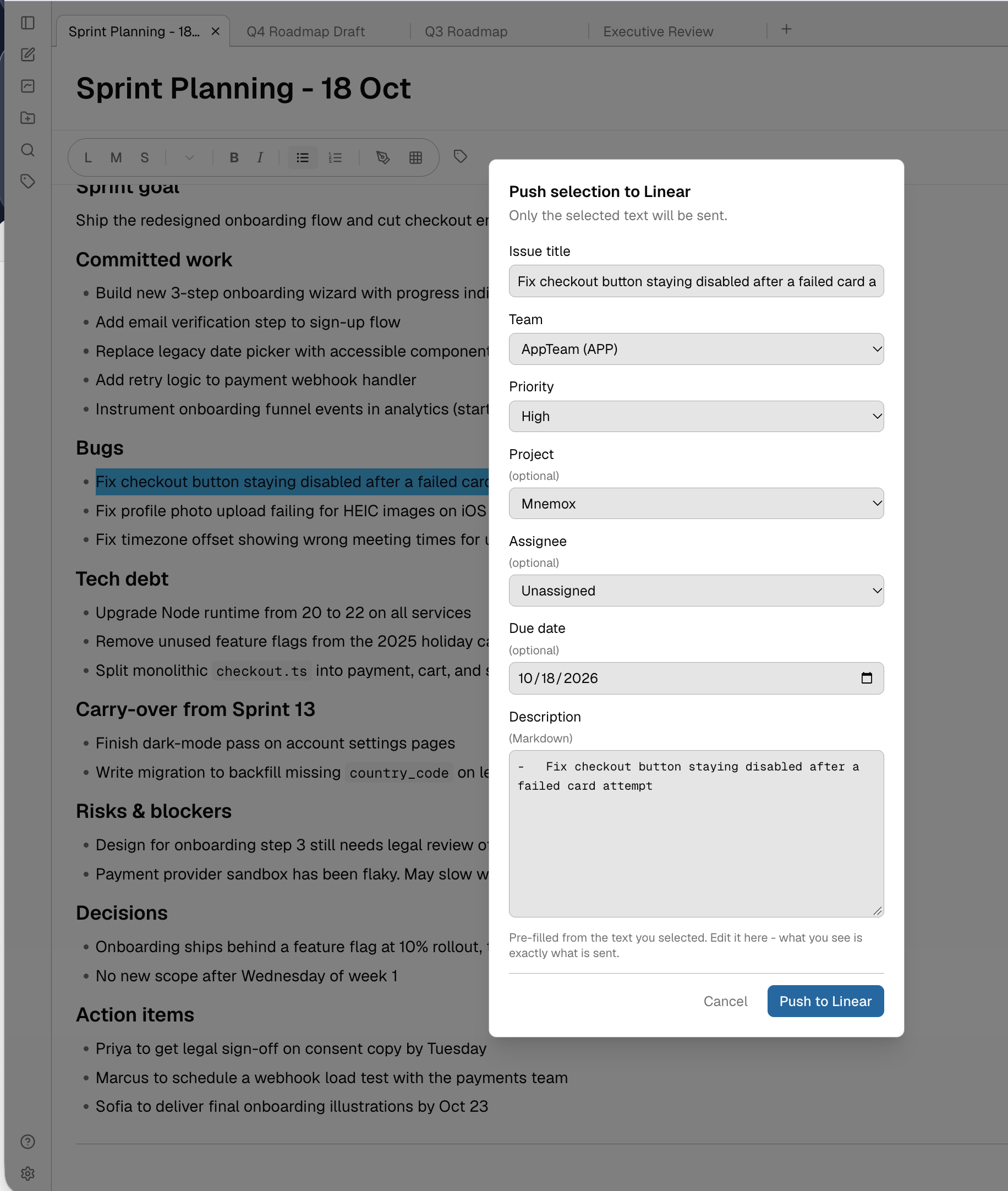
- To push one part of a note, select it first. To push the whole note, select nothing.
- Press the send (paper plane) button beside the note title, or right-click the note → Push to Linear. With a line selected, you can also right-click the selection → Send to Linear.
- Choose a team. Project, assignee, priority and due date are optional.
- Check the title — it defaults to the first line you selected, or the note title — and the description, which shows the exact Markdown that will be sent. Edit or trim either.
- Press Push. The issue key (for example APP-123) appears beside the line it came from, with its current status. Click it to open the issue.
Examples
One meeting, four issues
A planning meeting note holds four actions. Select each in turn and push it — four issues, each chip sitting next to the sentence that produced it.
Trimming a long note down to the issue
Push the whole note, then cut the description down to the two paragraphs the issue is actually about before pressing Push.
Good to know
- Issues are created as you, under your Linear account and permissions — not as a bot.
- Headings, nested lists, checklists, tables and code blocks arrive as real Markdown.
- The chip moves with its text as you edit, and shows the issue's live status.
- A due date in the past is refused before anything is created. Nothing is ever half-created.
- Pushing needs a connection. Offline, the dialog says so and your note is safe.
- Push to Linear is part of Pro.