Drawings
Drawings in a notePro
A canvas for boxes, arrows, freehand and text, right beside the words.
What it is for
A diagram belongs next to the paragraph explaining it. Draw it in the note instead of switching to a whiteboard app and pasting a screenshot back — and it stays editable.
How to use it
- Put the cursor where the drawing should go and press the pen button in the toolbar (Insert a drawing).
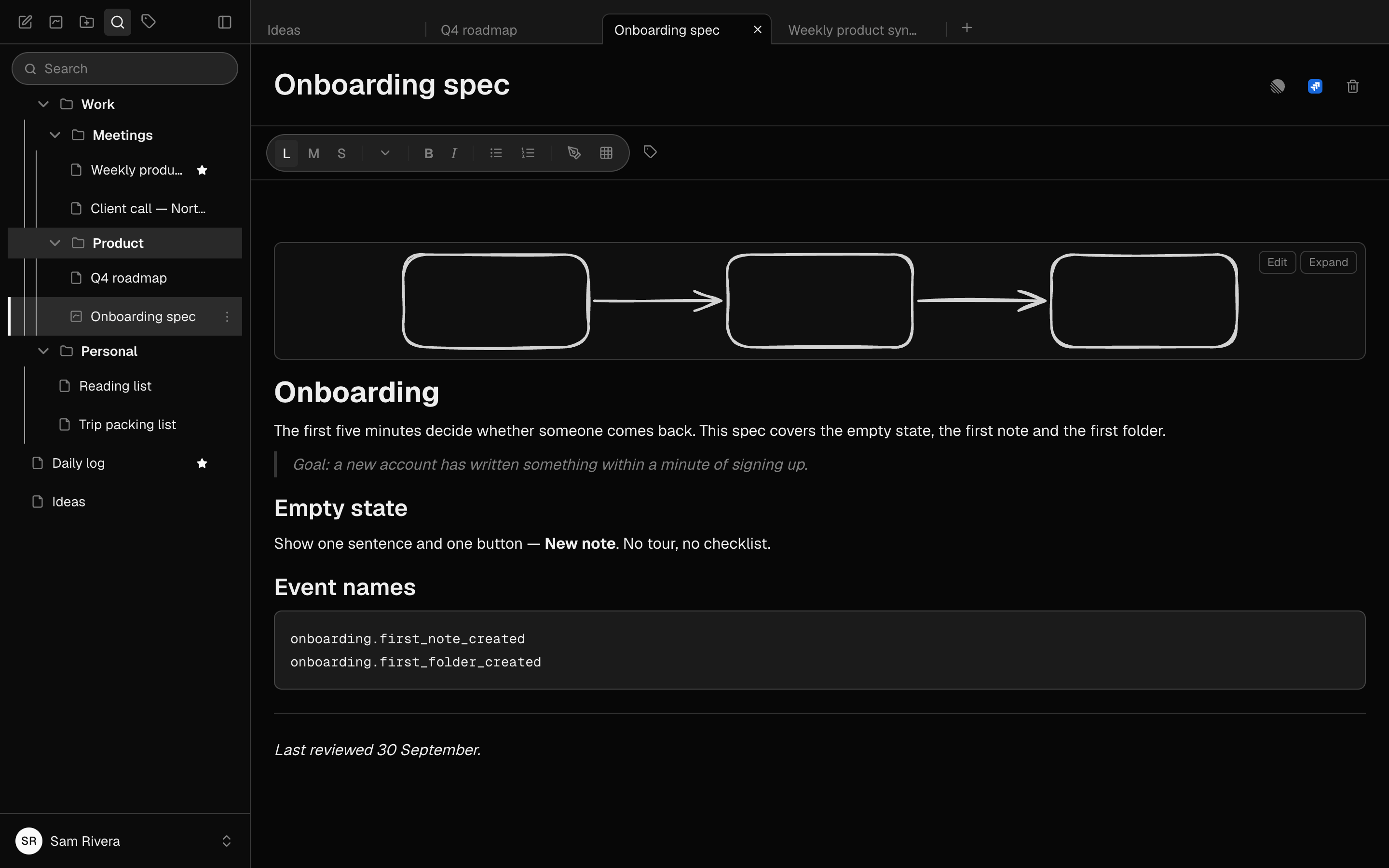
- Hover the drawing for two buttons: Edit opens the canvas in place, Expand opens it full screen.
- Draw with the tools along the top: boxes, arrows, lines, freehand and text.
- Press Done, or Esc, to save and close. There is no separate save, and Esc never throws work away.
Examples
A system sketch above its explanation
Three boxes and two arrows showing how the pieces connect, with the paragraph about each one underneath. The note carries both the picture and the argument.
Talking through a flow on a call
Expand the drawing to full screen while sharing your screen, sketch as you talk, then press Done — it stays in the note as the record.
Good to know
- Drawings are part of Pro. Drawings you have already made always stay in your notes and stay readable — only making and editing them needs Pro.
- On a phone the canvas always opens full screen, so Edit and Expand do the same thing.
- Drawings work offline like the rest of the note. One made on another device shows “Drawing not synced to this device yet” until it arrives — that is not an error.
- Two people cannot draw on the same drawing at once; if two devices edit one drawing at the same time, the last save wins.
- Drawings do not travel into a pushed Linear or Jira issue — the description says [drawing] where the picture was. Images cannot be placed inside a drawing yet.